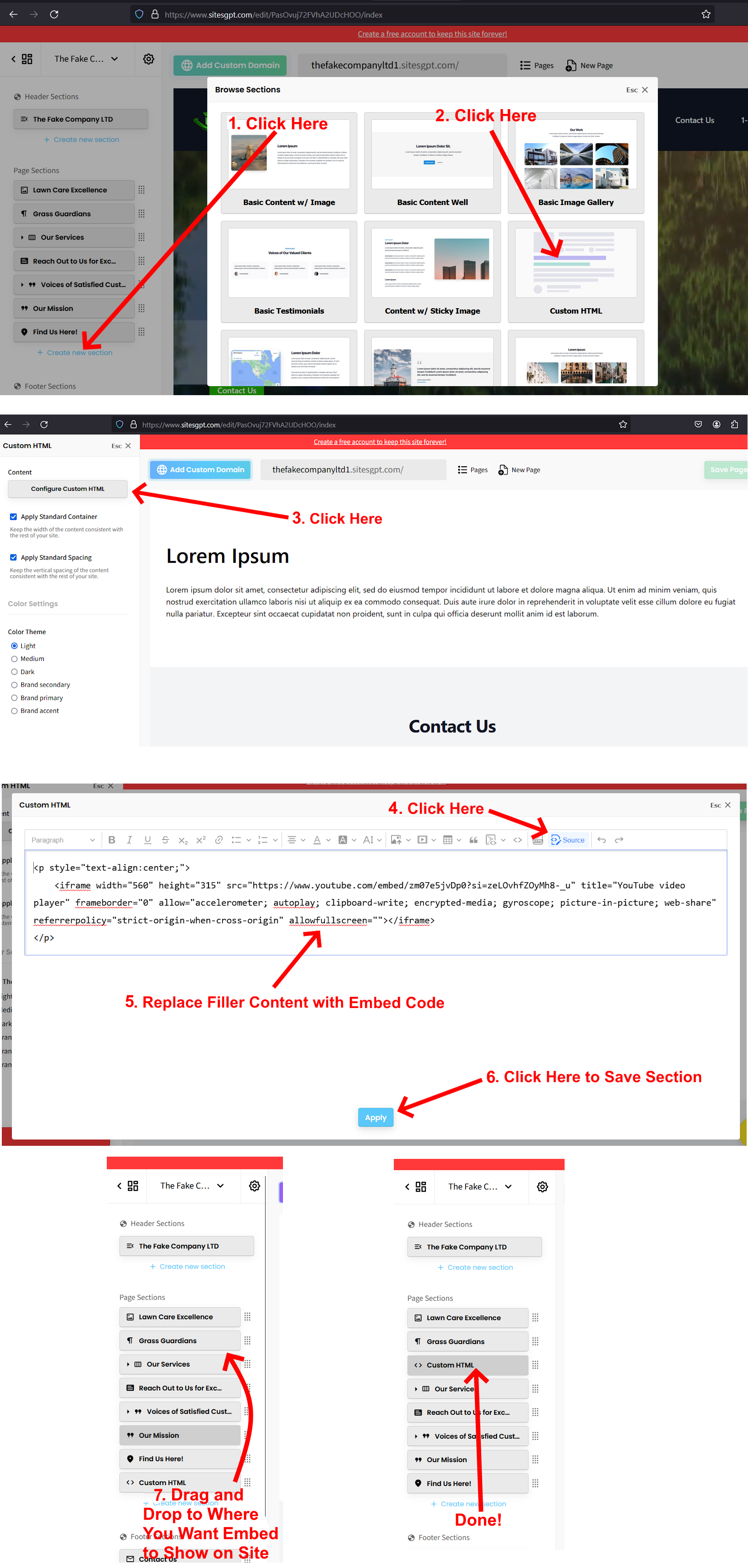
To embed an iframe onto your website, follow these instructions:
1. In the SitesGPT website editor, find the list of sections in the left sidebar editor. At the bottom of the list of sections, you will see a blue link “+Create New Section”. Click that.
2. Select “Custom HTML” option and wait for the section to generate. Once generated, you will see the new section toward the bottom of the page with filler/placeholder text. Click this new section.
3. Look for the “Configure Custom HTML” button. Click that. Look for the “Source” button in top bar. Click that.
4. Replace the filler text with your embed code and click “Apply”.
5. Click the green “Save” button at top right of the page to save the code to your site.
6. Once the embedded element shows up on your site, you can move it throughout the page by dragging and dropping the section button in the sidebar editor to the place you want it to appear.
See attached screenshot and let us know if you have any questions.
*By the way, we have nearly 100 new FREE features and widgets available to enhance your website. Check them out here:
FREE FEATURES, ADD-ONS, AND WIDGETS TO ENHANCE YOUR WEBSITE!