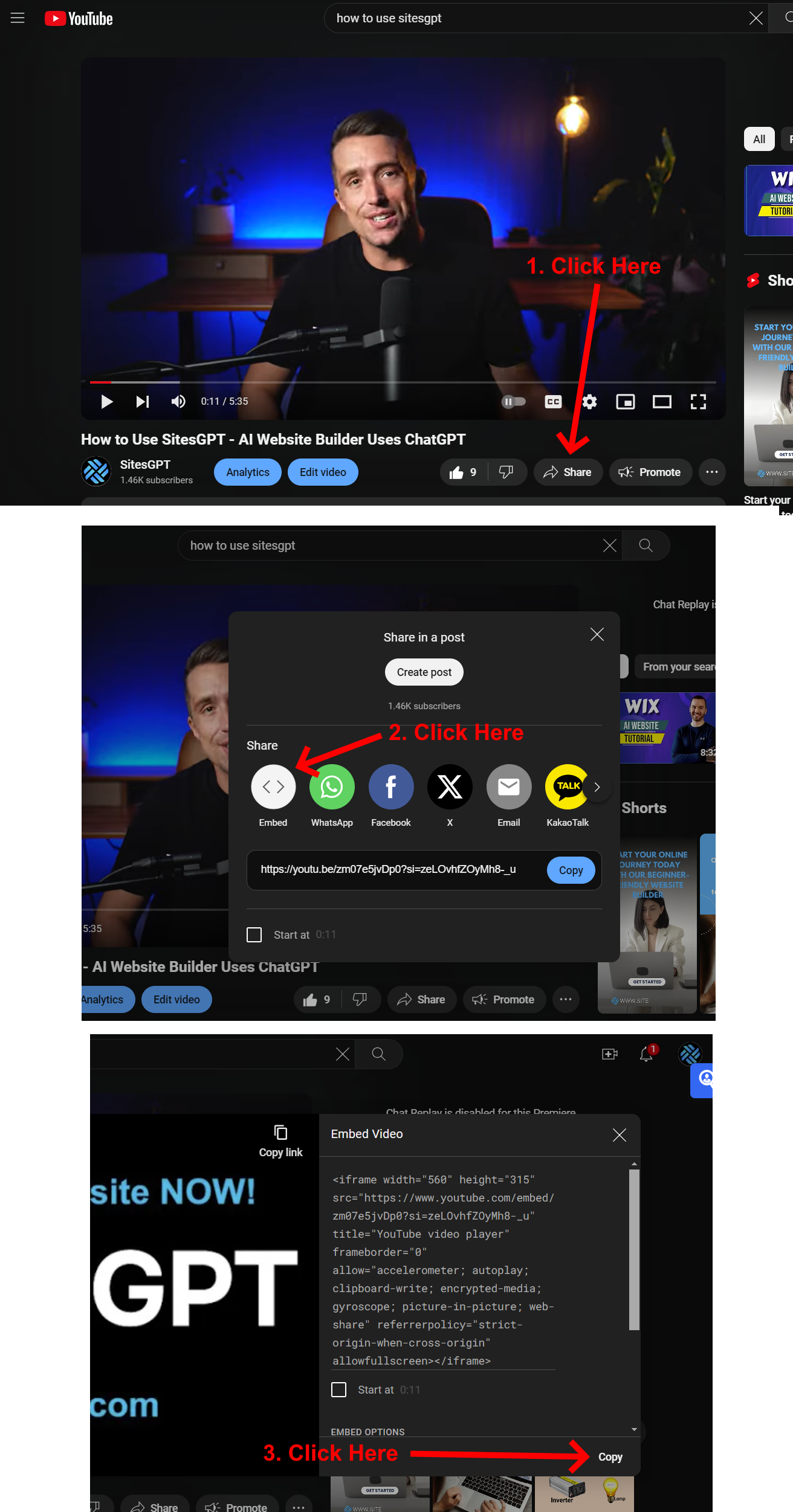
To use your own video on the website, you will need to upload it to a video hosting website such as YouTube and embed the video into a new section. Here is how to do that:
1. Upload your video to YouTube (or a similar video sharing website.)
2. Find the “Embed Code” for the video. You can find this by clicking the “Share” button for the video and look for “Embed”. Copy this code.
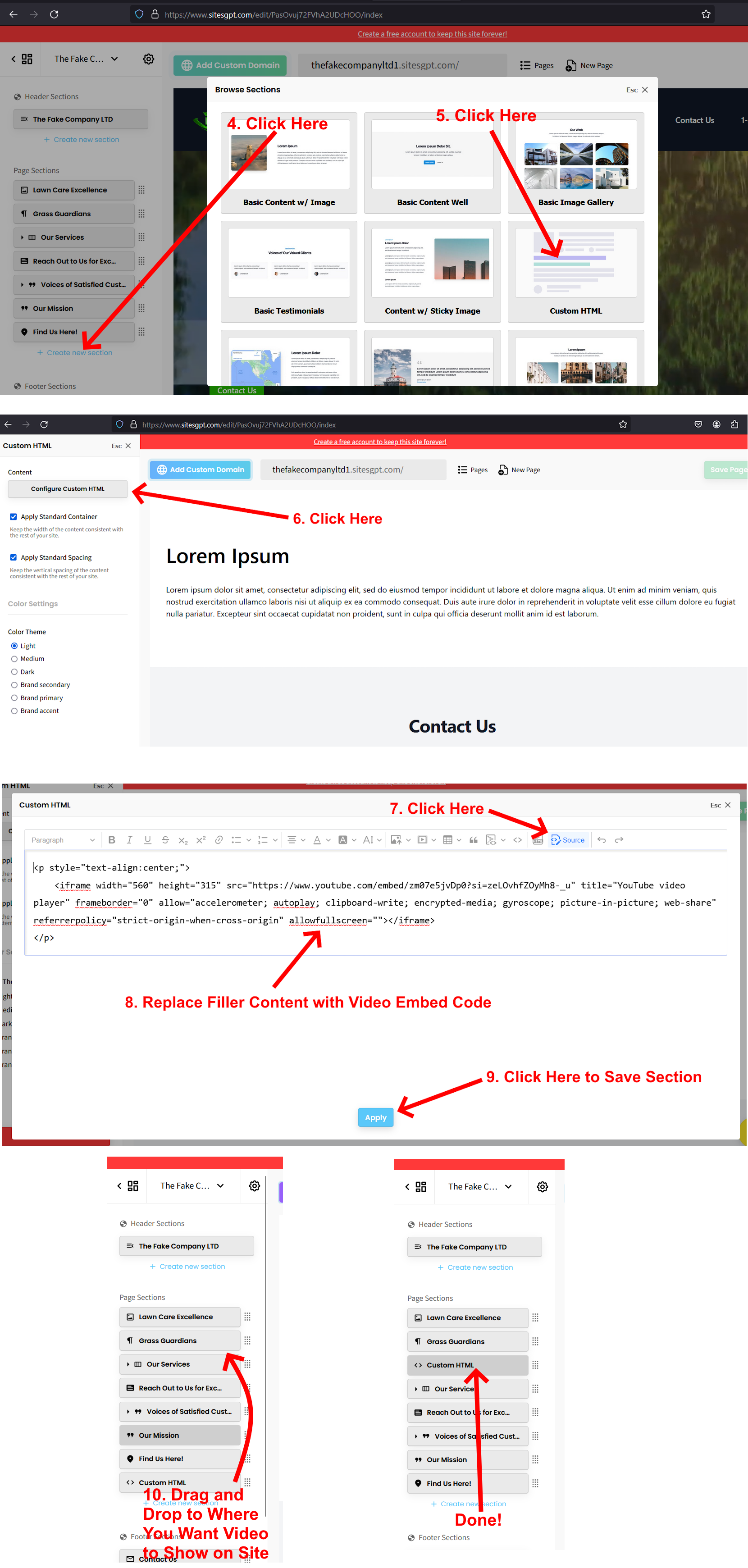
3. In the SitesGPT website editor, find the list of sections in the left sidebar editor. At the bottom of the list of sections, you will see a blue link “+Create New Section”. Click that.
4. Select “Custom HTML” option and wait for the section to generate. Once generated, you will see the new section toward the bottom of the page with filler/placeholder text. Click this new section.
5. Look for the “Configure Custom HTML” button. Click that. Look for the “Source” button in top bar. Click that.
6. Replace the filler text with your video embed code and click “Apply”.
7. Now the video will show up in the new section. From here, you can drag and drop the section to a different place on the website from the left sidebar editor.
I have attached screenshots showing all these steps. Please review and let us know if you have further questions.
SitesGPT Support Team