Here are instruction on how to DELETE a section and how to ADD A NEW SECTION:
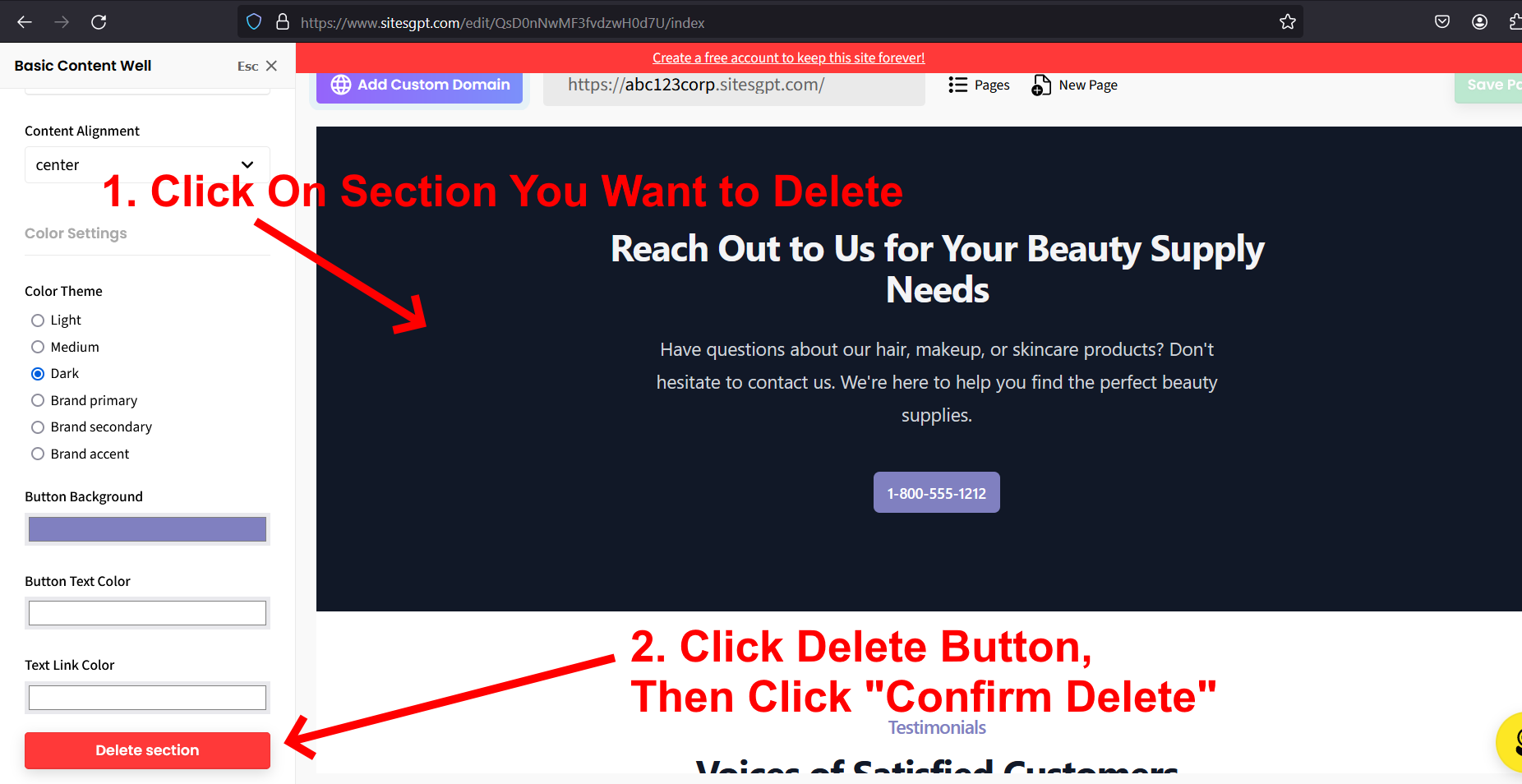
HOW TO DELETE A SECTION
1. Click on the section you want to delete.
2. Go to the left sidebar editor, scroll to the bottom, look for the red “DELETE SECTION” button. Click it.
3. Confirm you want to delete it.
4. Click green “SAVE” button at top right of the page.
HOW TO ADD A NEW SECTION
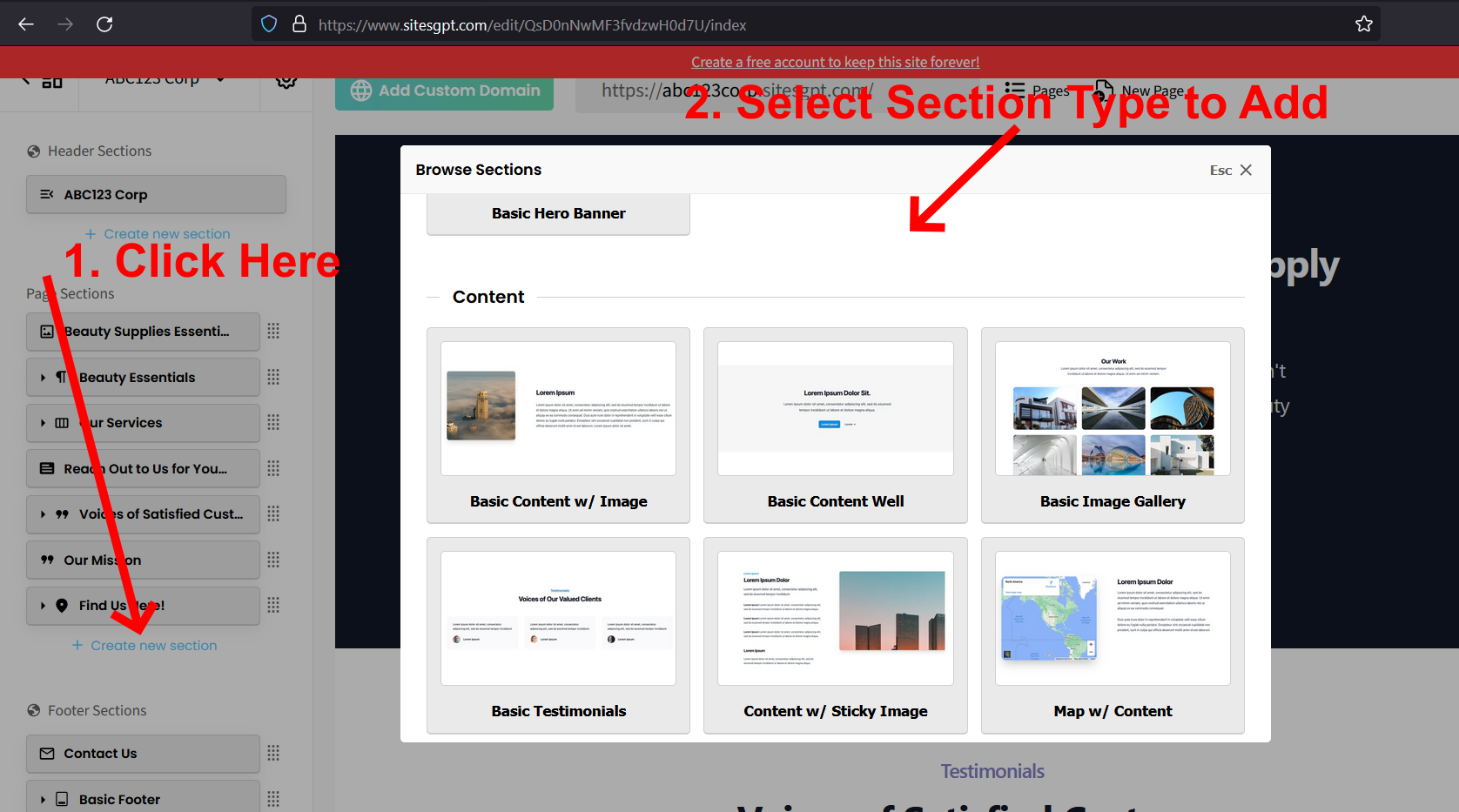
To add a new section, exit out of the left sidebar editor for the current section (click “Esc X” at top right corner of the left sidebar editor). This will expose the Global left sidebar editor. From here:
1. Look for “Page Sections” in the global left sidebar editor. Below it, you will see the list of sections that appear on your page.
2. Click the blue “+ Create New Section” link.
3. Choose the type of section you want to add.
4. Once you add the new section, scroll down the page to find the newly create section. Click on the section to edit it, etc.
5. If you want to move the new section to a different location on the page, just locate the section in the global left sidebar editor and drag it up or down the section list to the location you want it to appear.
6. Click the green “SAVE” button in top right corner of the page.
** SEE ATTACHED SCREEN SHOTS FOR CLARIFICATION OF THE STEPS DESCRIBED ABOVE **
Hopefully that helps. Let us know if you have any further questions.