Here are the instructions for adding more images to your image gallery:
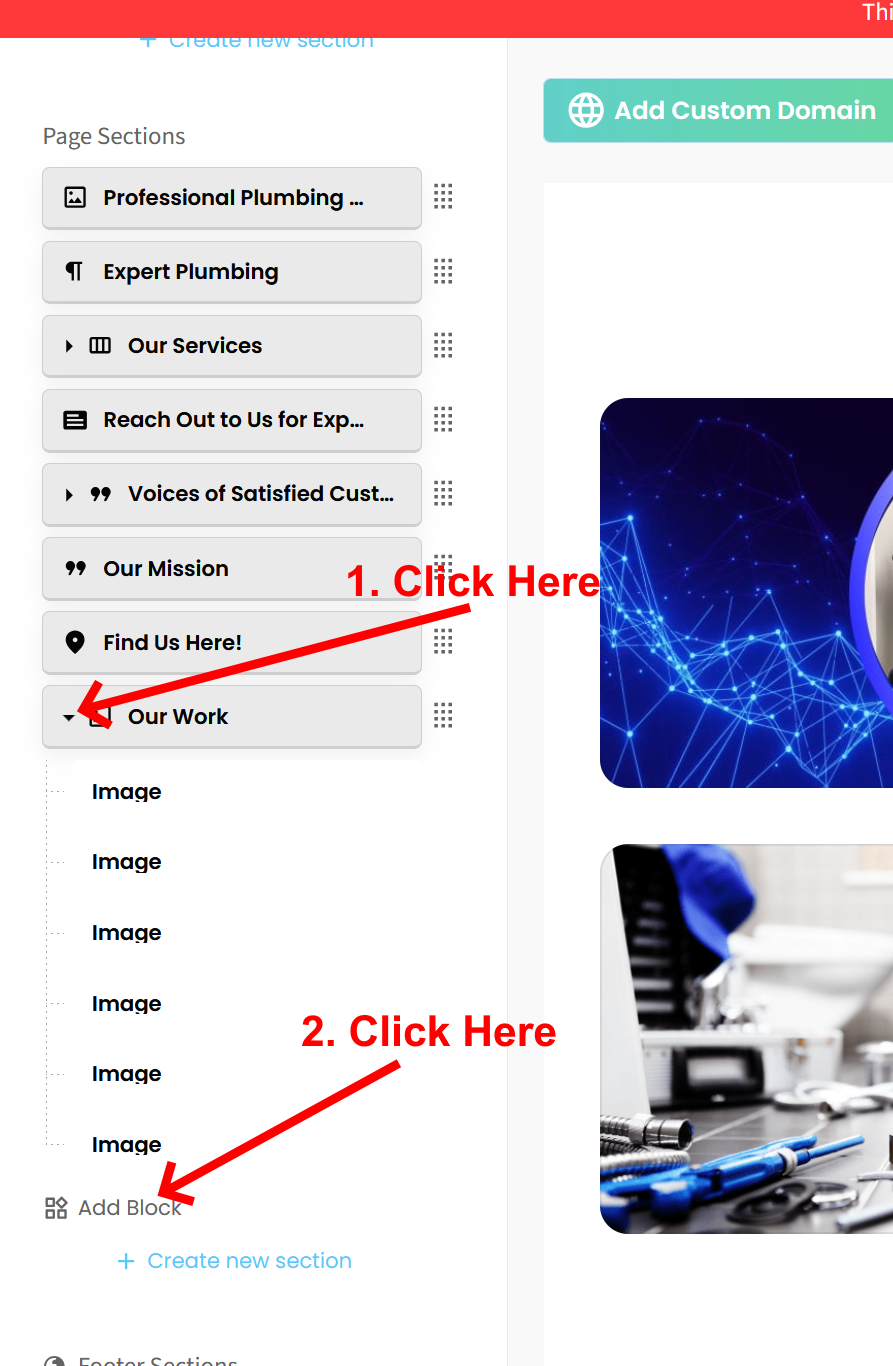
1. In the left sidebar editor, look for the buttons that represent each section. Find the one for the image gallery.
2. Click the small triangle at the left of the image gallery button.
3. Click “Add Block”. This will allow you to add another image. You can add as many as you wish by clicking the button again and again.
4. Be sure to click green SAVE button at top right of screen to save your changes.
*See attached screen shot for clarification.
Please let us know if you have any other questions.