Here are instructions on how to install the Elfsite widget on your website:
1. Once you create the widget, Elfsite will provide the embed code. From there, you need to copy and paste this code into a new section of your website:
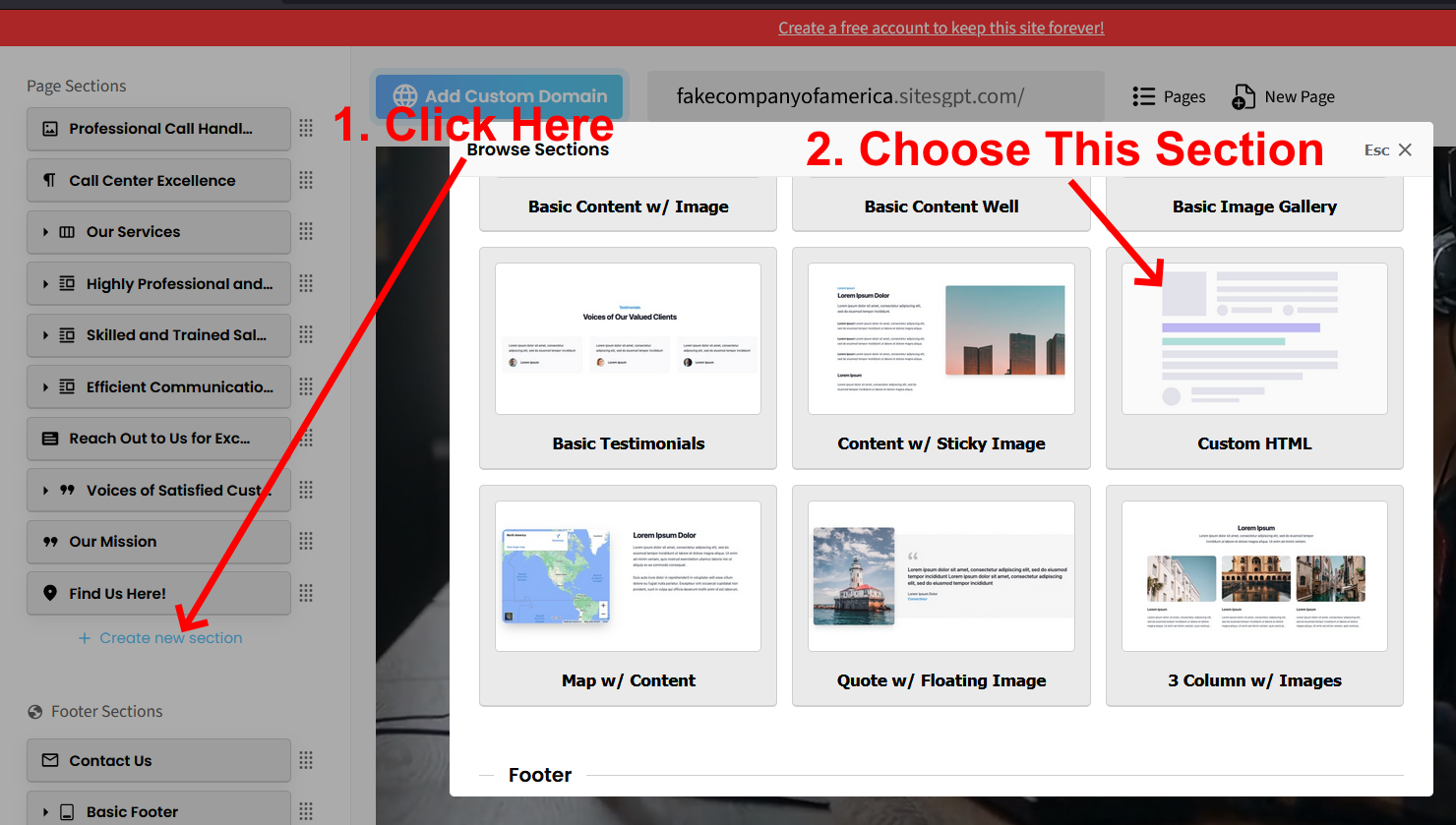
2. Click the blue “+ Create new section” link. Choose the “Custom HTML” section type. See Screenshot 1 that shows how to add the new section.
3. Once you create the section, you will see filler text “Lorem Ipsum” where the section shows on the page. Once you see that, you can click on the section, delete the filler text, and paste the widget embed code.
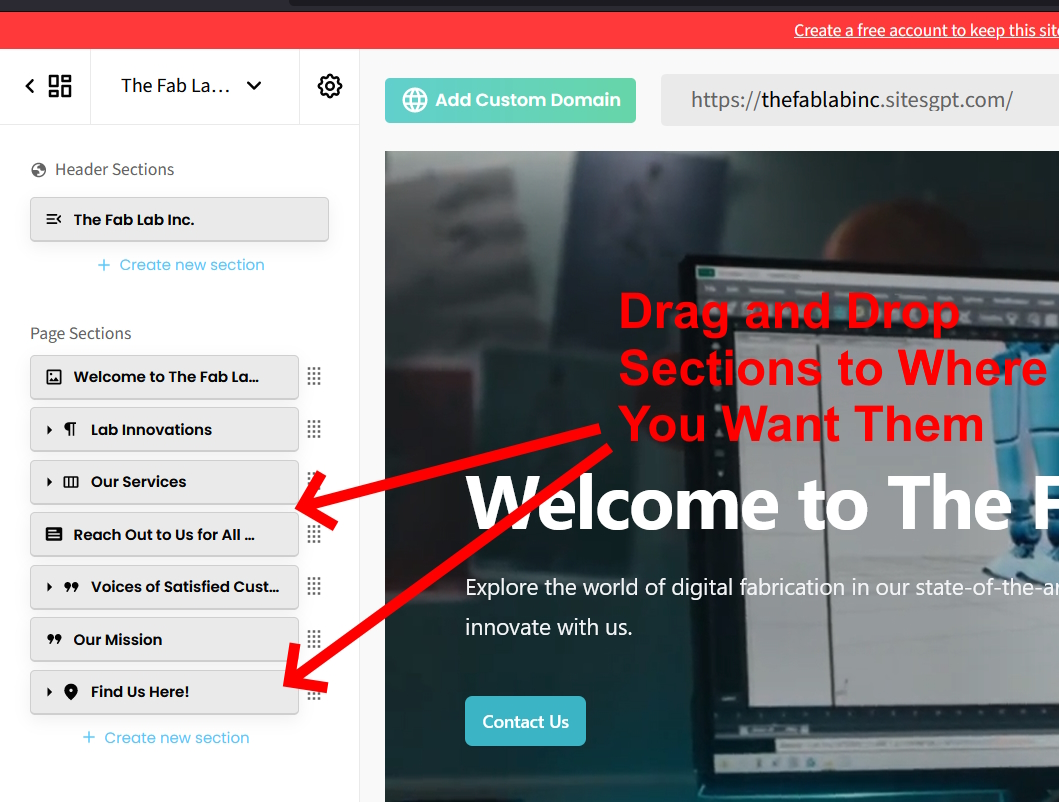
4. Once you’ve created your new section, pasted the code in, and save your changes; you can drag the section to the area of the page you want it to show and drop it in place. This is done from the list of sections in the left sidebar editor. See Screenshot 2.
Be sure to save your changes and the widget will show up on your website.
Please follow these steps and let us know if you have any other questions.