If you are looking for very basic website analytics, you can sign up for a free Google Search Console account, add your website URL to the account, and paste a small piece of code into your website to verify ownership of the site. Instructions on how to add the tracking code to your site are shown below.
If you are looking for more robust analytics such as visitor location, demographics, keyword suggestions, competitor analysis, SEO features, etc., I highly recommend that you check out this platform:
HITSLINK WEBSITE ANALYTICS
Implementing their tracking is similar to Google’s program. Just paste the code snippet into your site using the instructions shown below.
To add the tracking code to your website, follow these steps:
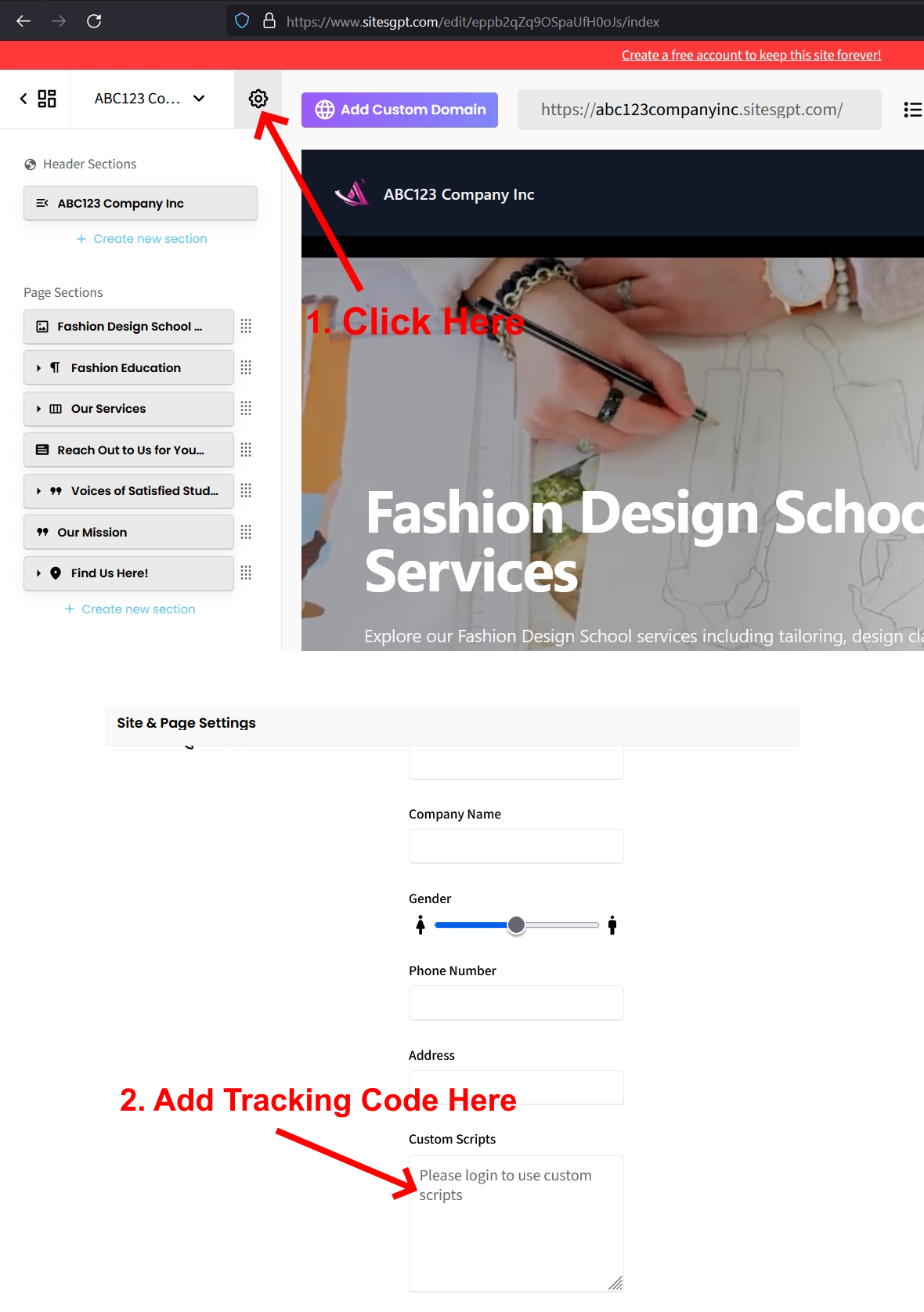
1. When you are on the website editor screen, look for the small gear icon at top of the left sidebar. Click that.
2. Click on “Site Settings” tab on the top.
3. Look for the “Custom Scripts” section.
4. Paste your tracking code into the “Custom Scripts” area.
5. Save changes to activate the tracking code.
*See attached screen shots.
Follow these steps and the tracking code will be activated.
Let us know if you run into any issues or other questions.
SitesGPT Support Team