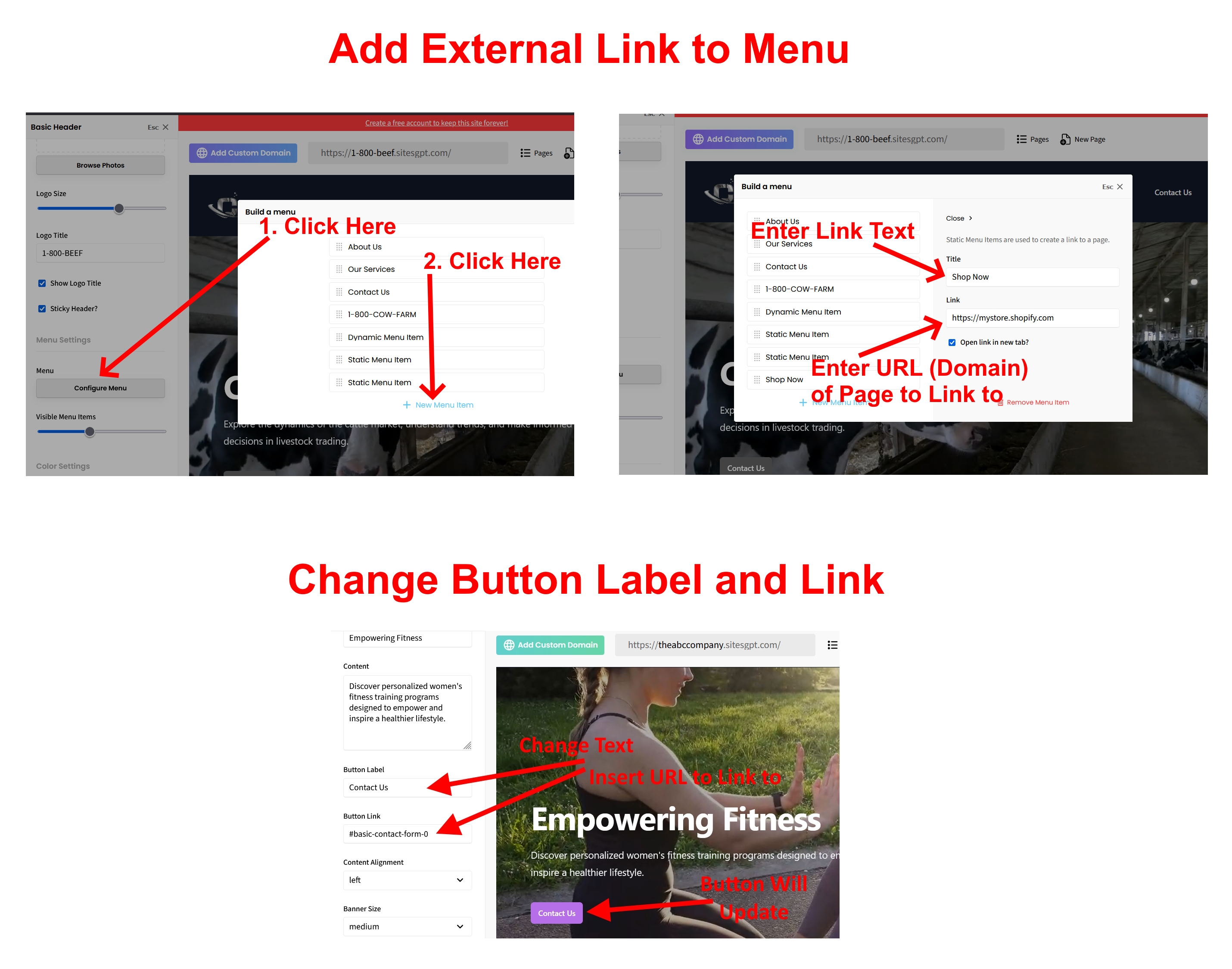
The easiest way to link your SitesGPT website to an external site is to add links to your header and footer menu. Here is how to do that:
1. In the SitesGPT website editor, click on the header section. The sidebar editor will open on the left. From there, look for the button “Configure Menu”. Click that button. Then select, “New Menu Item” Then select “Static Menu Item”. From there you will be able to create the text for the link (“Title” field) and paste the URL of the external site into the “Link” field.
2. To add the link to your footer menu: in the site editor, click on the footer, click the “Configure Menu” button, and follow the same process as described in #1 above.
3. You can also link out to the external site by changing the Button Label and Button Link for the “Contact Us” button in the Hero Banner section (the section with large video or image at top.) Click on that section, look for “Button Label” / “Button Link” in the left sidebar editor. From there you can change the button Title and URL link.
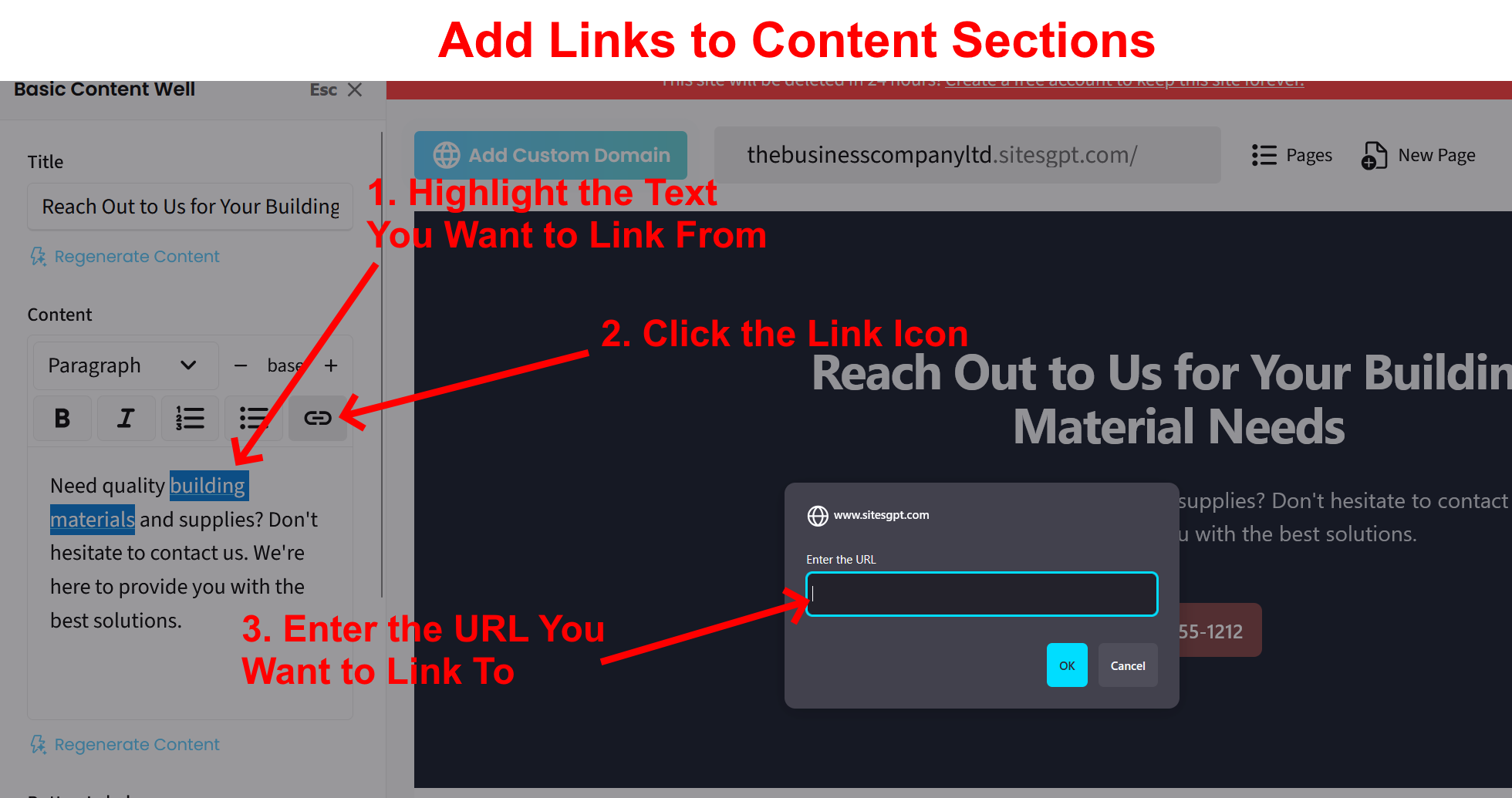
4. Also, in any of the content sections, you can edit the content and add hyperlinks within the text of the section by highlighting the text you want to link from, click the link icon, and enter the URL of the site/page you want to link to.
Please see attached screenshots for clarification. Let us know if you have any other questions or concerns.