To create an image gallery, here are the instructions:
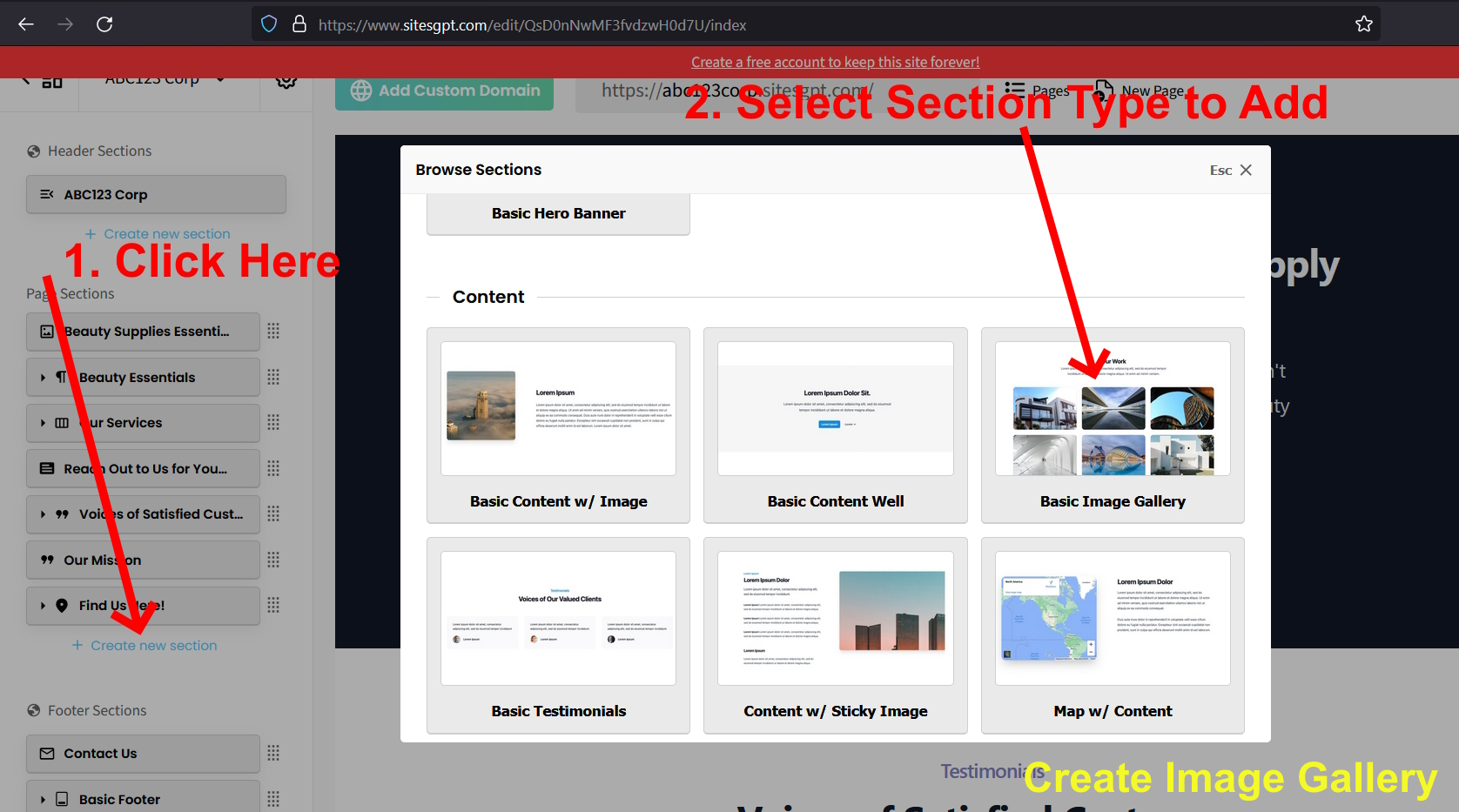
1. Find the blue link in left editor side bar “+ Create New Section”. Click that.
2. Look for the section type “Basic Image Gallery”. Choose that.
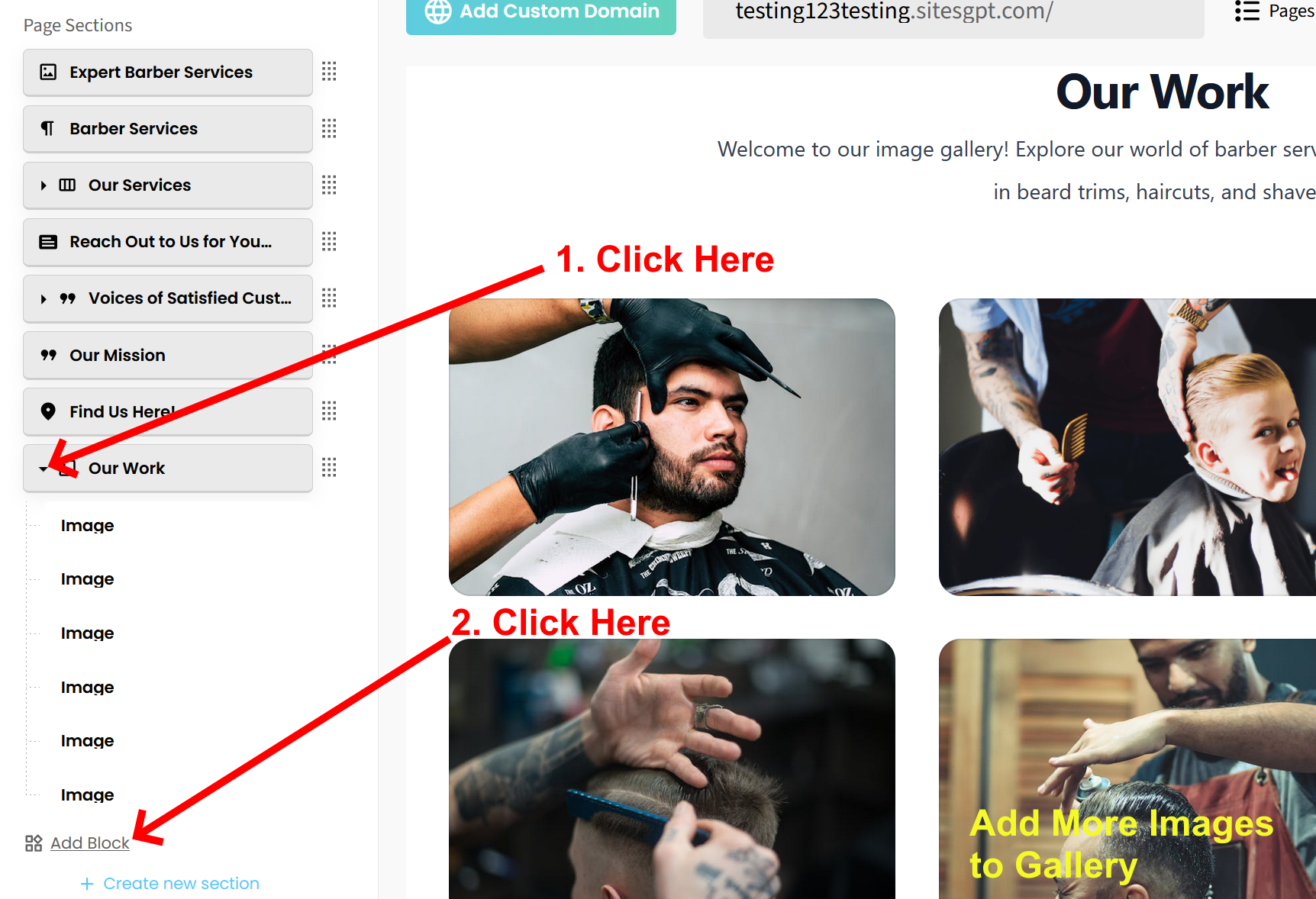
3. The new section will show up on the page (scroll up and down on page until you find it.) Once you find the Image Gallery section, you can edit it by changing images or uploading your own. To change an image, just click on the image where is shows in the left editor sidebar. Once you click it, you can upload your own image to replace it.
4. If you want to add more images to the gallery, just add more “blocks” to the section. To do this, click on the small arrow on the left of the section’s button in the left sidebar editor. That will open the list of blocks (6 images should be listed there.) Then click the “Add Block” button at bottom. Do this for each new image you want to add.
5. You can rearrange the location of any section, including the image gallery, by dragging and dropping the button that represents the section in the left sidebar editor.
*SEE ATTACHED SCREENSHOTS SHOWING HOW TO CREATE IMAGE GALLERY SECTION AND HOW TO ADD MORE BLOCKS TO IMAGE GALLERY.
Hopefully that helps. Let us know if you need further assistance.