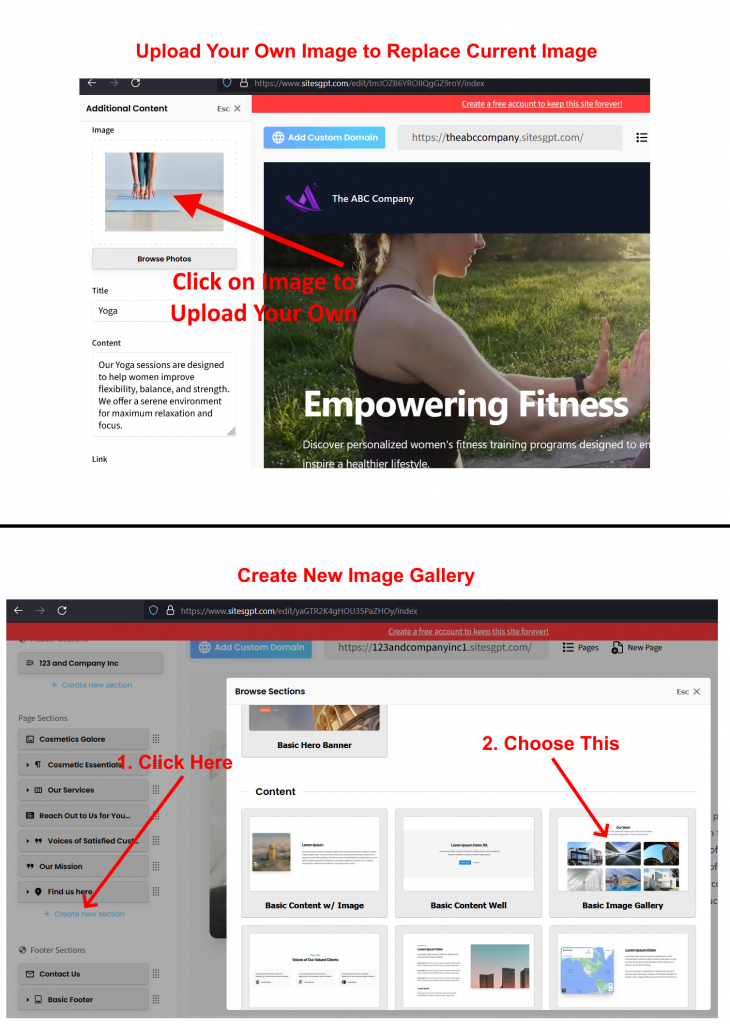
To upload your own photos, just click on the section you want to change the photo in. Once clicked, the left sidebar editor will open. In the left side bar, you will see the image from the section. Just click the image in the left sidebar editor and you will be able to change it to one from your computer or device.
You can also add an image gallery of all new images:
- Find the blue link in left editor side bar “+ Create New Section”. Click that.
- Look for the section type “Basic Image Gallery”. Choose that.
- The new section will show up on the page (scroll up and down on page until you find it.) Once you find the Image Gallery section, you can edit it by changing images or uploading your own.
- You can rearrange the location of any section, including the image gallery, by dragging and dropping the button that represents the section in the left sidebar editor.